
Categories & Types
Managing asset categories and types in batapp.
Categories & Types
Categories and types form the classification hierarchy for your assets. Every asset belongs to a type, and every type belongs to a category.
Categories
Categories are the top-level groupings. Common examples:
- IT Equipment
- Furniture
- Vehicles
- Tools & Equipment
- Audio Visual
Managing Categories
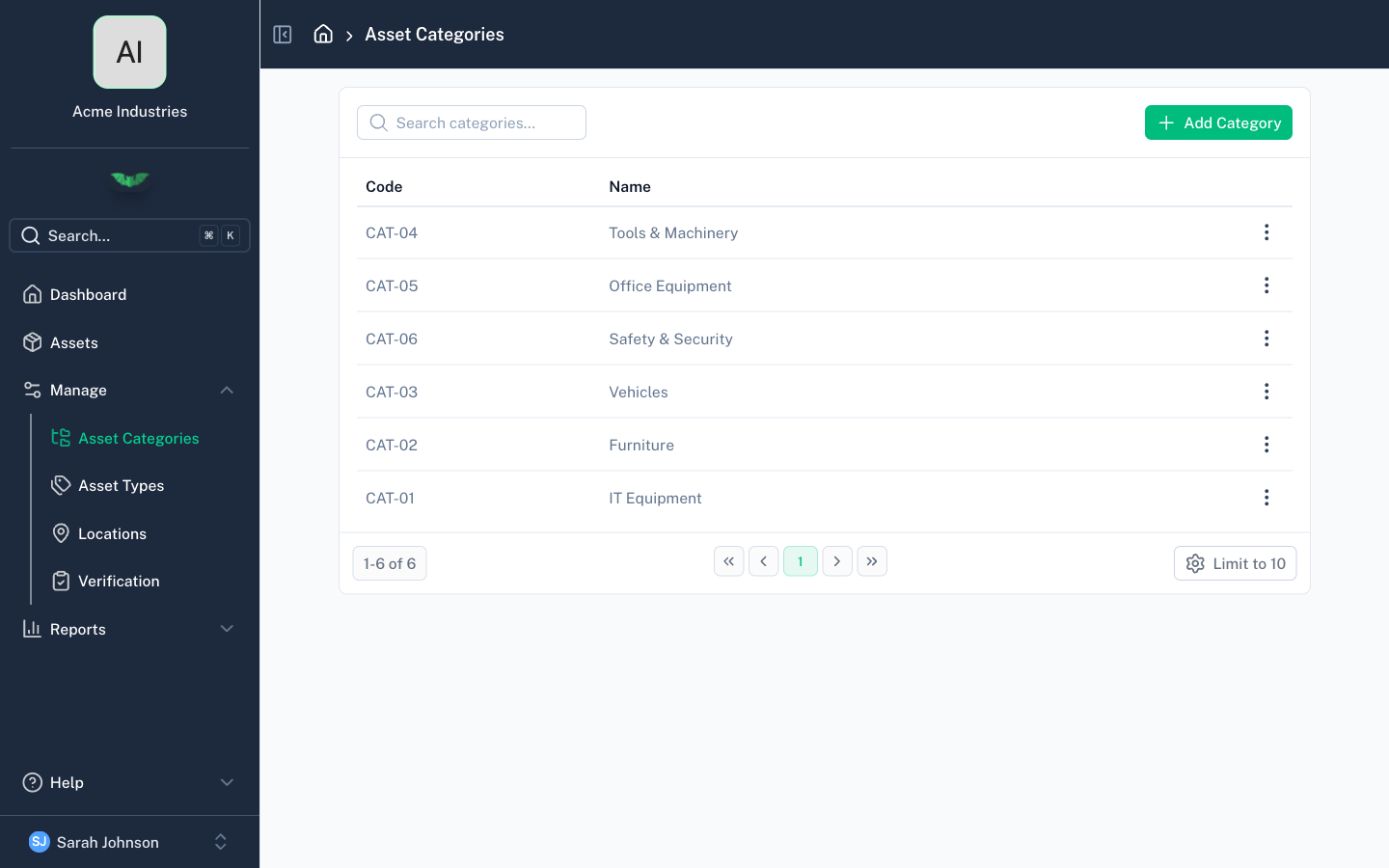
Navigate to the categories page from the sidebar. From here you can:
- Add a new category with a name and code
- Edit an existing category's name or code
- Delete a category (only if it has no types assigned)
Types
Types sit within categories and provide more specific classification. For example, under IT Equipment you might have:
- Laptop
- Desktop
- Monitor
- Printer
- Network Equipment
Managing Types
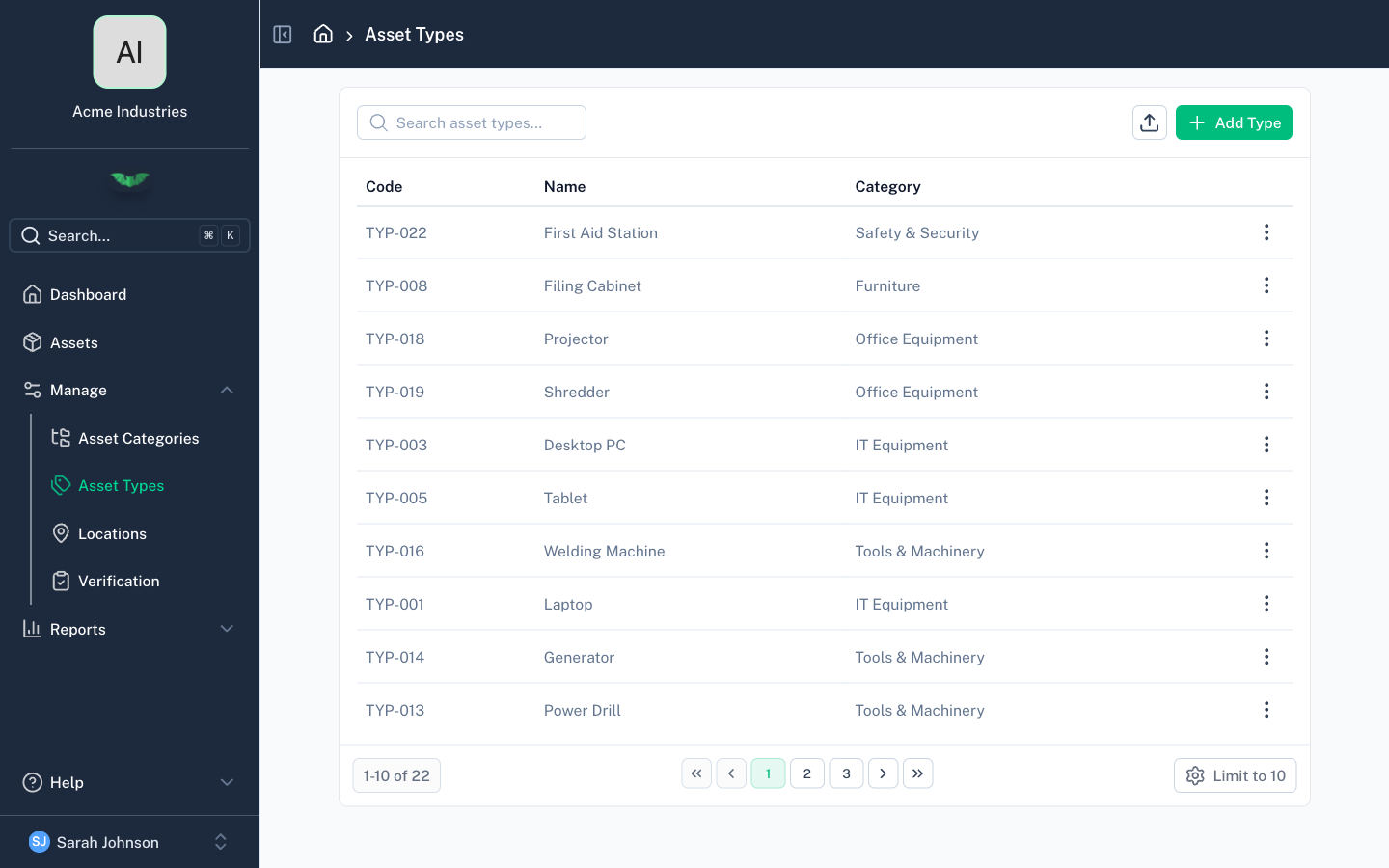
Navigate to the types page from the sidebar. The list shows each type with its parent category. You can:
- Add a new type — select a category, then provide a name and code
- Import types in bulk from CSV
- Edit a type's name, code, or parent category
- Delete a type (only if no assets are assigned to it)
Bulk Import
Use Import Asset Types on the types page to create categories and types from a CSV file.
- The CSV uses
Category Name,Type Name, and optionalType Code - Missing categories are created automatically
- If
Type Codeis blank, batapp generates the next available code - batapp validates duplicates before importing
Planning Your Structure
A few guidelines:
- Categories should be broad — You'll typically have 5–10 categories. If you're creating more than 20, some might work better as types.
- Types should be specific — These appear in the asset form dropdown, so they should be meaningful without needing the category context.
- Codes are for exports and reports — Choose short, recognisable codes (e.g.
ITfor IT Equipment,FURNfor Furniture). - You can restructure later — Types can be moved between categories, so don't overthink the initial setup.