
Members
Members
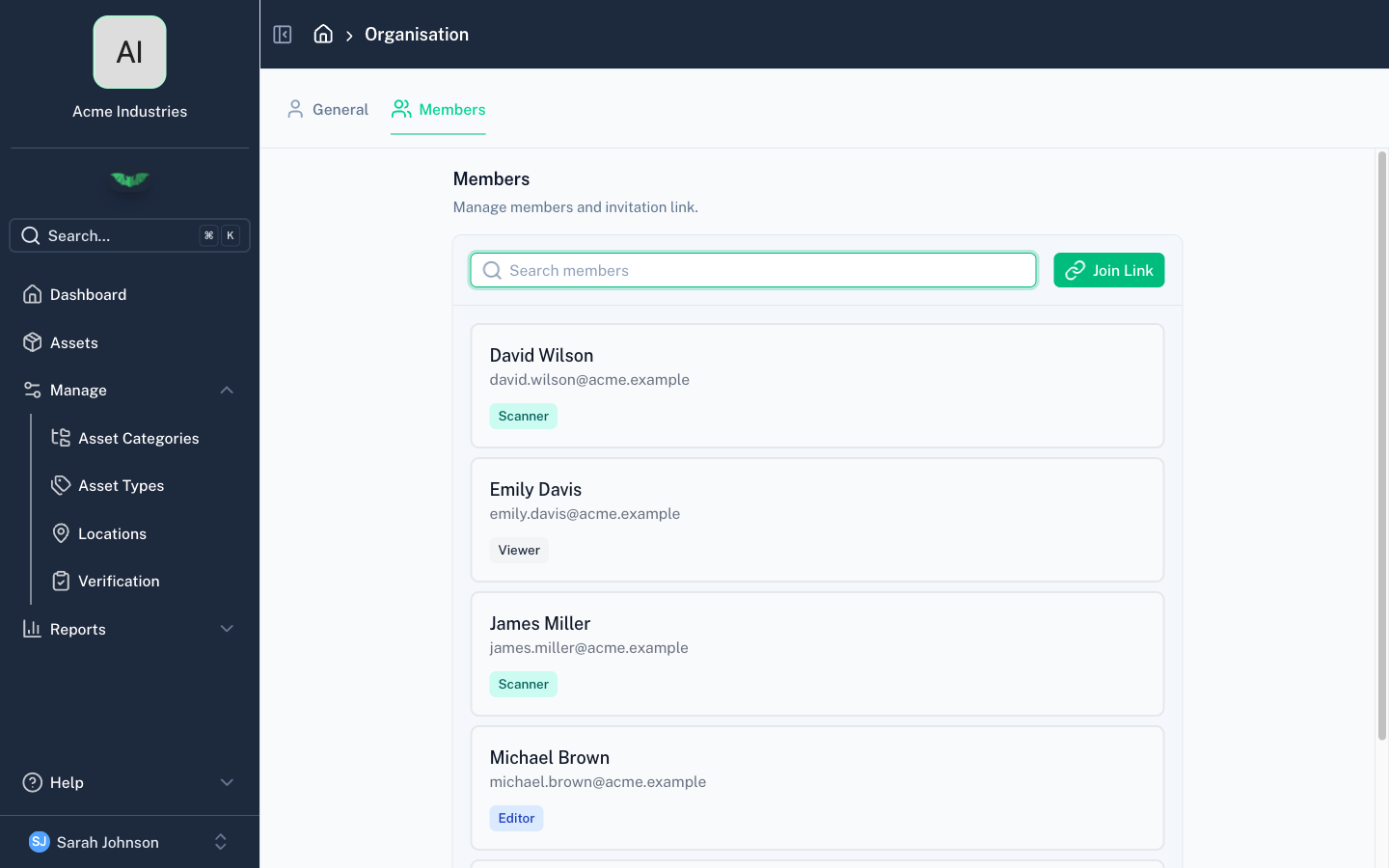
Members are people who have access to your organisation in batapp. Managing members requires Admin or Support role.
Member List
The members page shows all current members with their:
- Name and email
- Role
- Location restrictions (if location-based access is enabled)
- Account status (active or locked)
Inviting Members
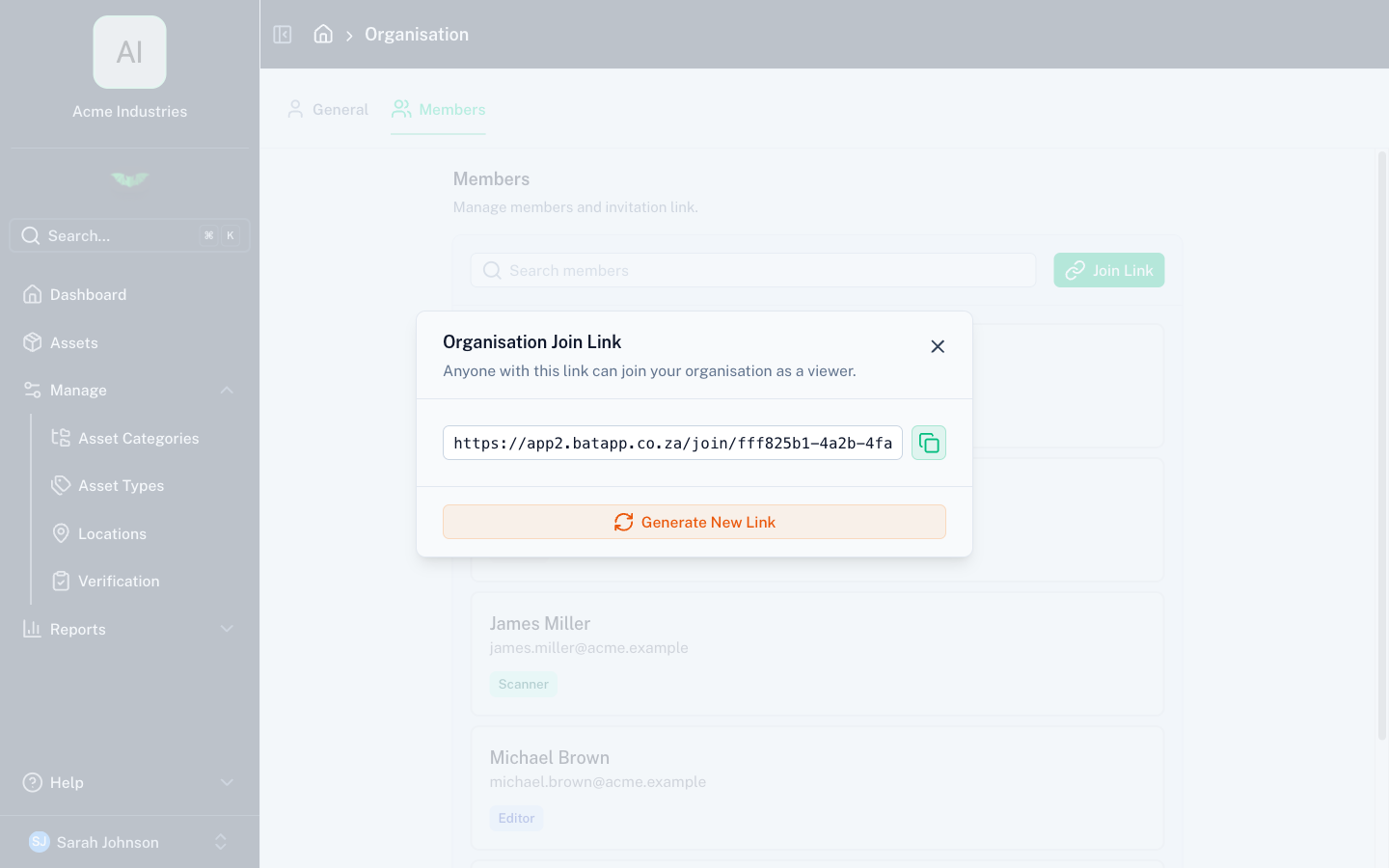
Generate a shareable join link and send it to whoever needs access. The join link:
- Is unique to your organisation
- Can be regenerated at any time (invalidating the previous link)
- Assigns the Viewer role by default — upgrade it afterwards in the member list
Anyone with the link can join, so regenerate it if it ends up somewhere it shouldn't.
Changing Roles
Select a member to change their role. See Roles & Permissions for what each role can do.
Role changes update the database immediately, but the member's session still holds their old role until their token refreshes. The safest approach is to ask them to sign out and sign back in — on both web and mobile.
Location Restrictions
When location-based access is enabled for your organisation, each member has one of three location settings:
- All locations — can see and manage assets at every location
- No locations — cannot access any assets (useful for temporarily suspending access without removing the member)
- Specific locations — can only see and manage assets at the assigned locations
To change a member's location setting, select them from the list, choose the appropriate option, and save.
Locking Accounts
Admins can lock a member's account to prevent them from accessing the organisation. Locked members cannot sign in or sync data. Unlocking restores access.
Removing Members
Remove a member to revoke their access to the organisation entirely. This does not delete their batapp account — they can still access other organisations they belong to.