
Stocktake
Stocktake
A stocktake confirms that every asset is where your register says it is. In batapp you do this from the Verification screen: choose a room, scan everything in it, and batapp shows you what was found, what is missing, what is out on loan, and what does not belong there.
Every asset you scan gets its Last Verified date updated, along with who saw it and where, so there is no paper list to print and tick off.
Before You Start
- Label your assets. Each asset needs a barcode label that carries its asset code. You can also type the code by hand.
- Set up your rooms as locations. A stocktake counts one location, so each room, office, or store should be its own location with its assets assigned to it.
- Check your role. You need the Admin, Editor, or Scanner role. Viewers cannot record a stocktake.
- Use the mobile app if you can. The phone camera reads the barcodes. On the web you can use a USB or Bluetooth scanner, or type each code.
Count a Room
Open Verification
Open the sidebar and choose Manage, then Verification.
Choose the room and tap Start
Select the room from the location list. You can search by name or code. Tap Start, and batapp builds the list of assets it expects to find in that room.
To count a room together with the locations inside it, tick Include sub-locations. If you pick a grouping location, such as a floor or a building, its sub-locations are always included.
Scan every asset in the room
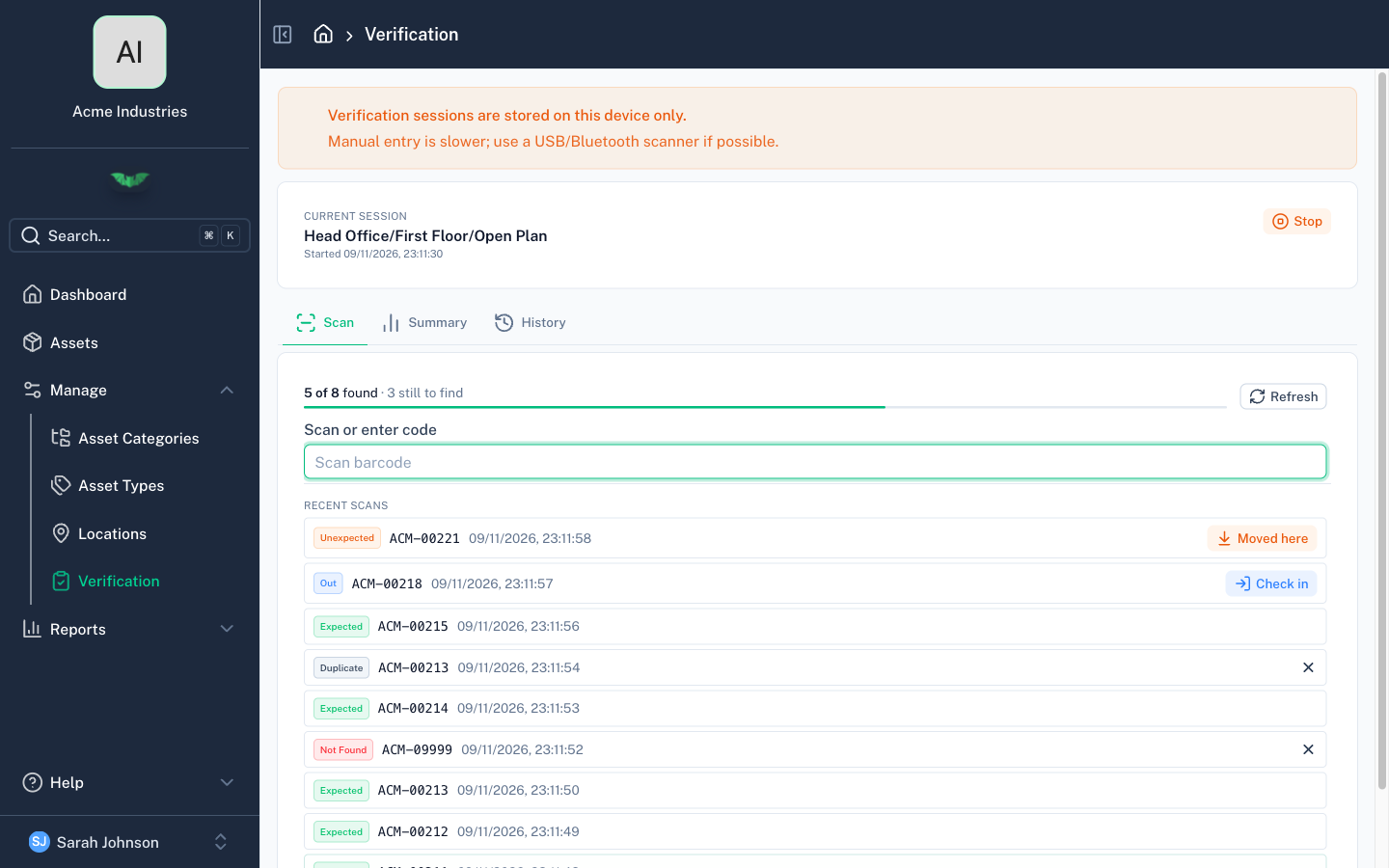
Tap the scan button in the Scan or enter code field and point the camera at the barcode. With a hardware scanner, just scan. You can also type the code and press Enter.
After each scan batapp shows a result: Expected, Unexpected, Out, Duplicate, or Not Found. The table below explains each one. The bar above the scan field shows how many of the expected assets you have found so far.
Check the Summary tab
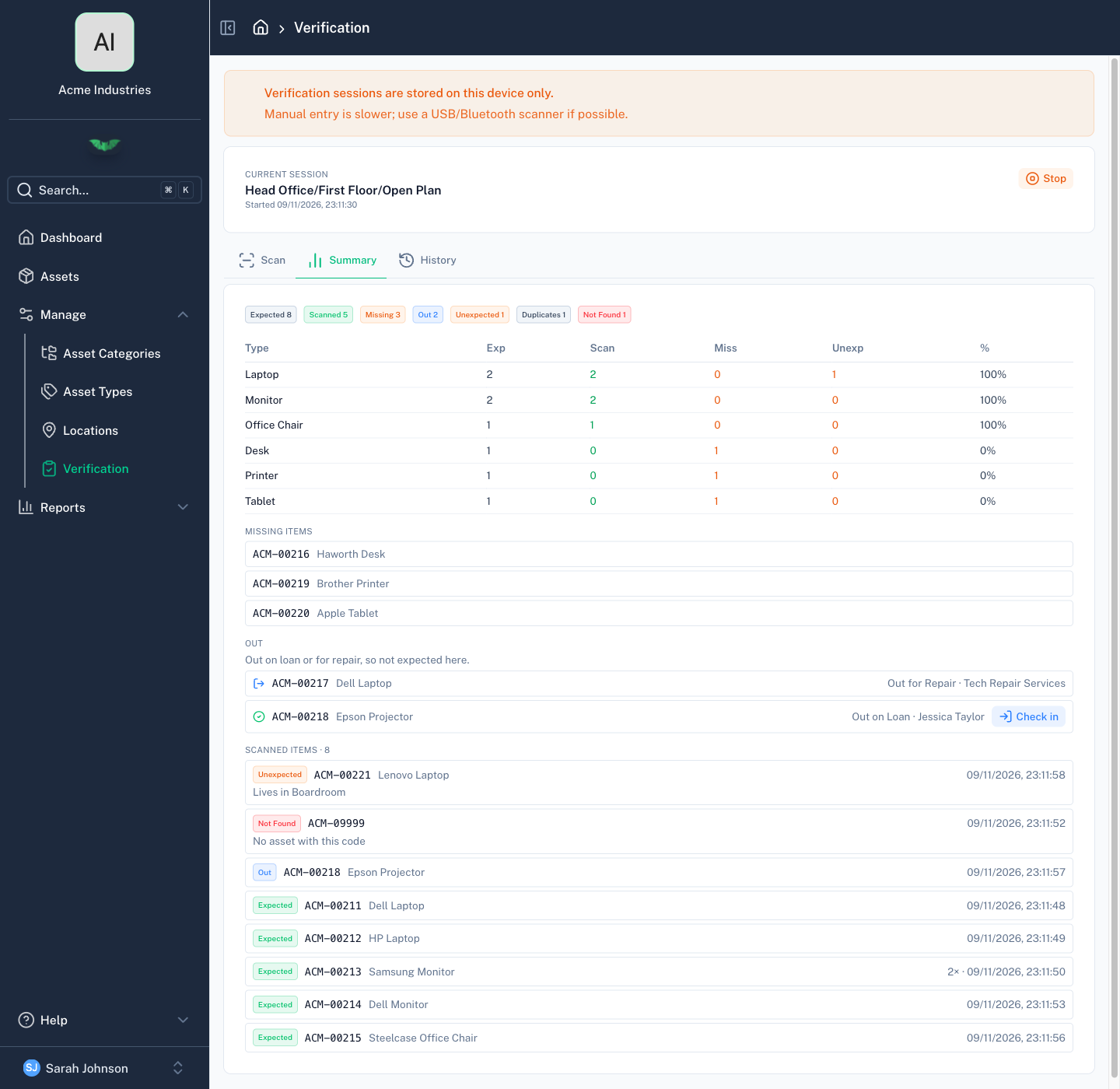
The Summary tab shows the totals, a breakdown by asset type, a Missing Items list of everything not yet scanned, the assets that are Out, and every code you have scanned. Look for the missing assets in the room and scan them if you find them.
Tap Stop
When the room is done, tap Stop and confirm. The session becomes read-only and cannot be reopened, so stop only when you have finished the room. Its summary stays available on the History tab.
Move to the next room
Start a new session for the next room and repeat.
What Each Result Means
| Result | What it means | What to do |
|---|---|---|
| Expected | The asset belongs in this room and is now counted. | Nothing. Carry on scanning. |
| Unexpected | The asset is on your register, but batapp has it in a different location. It is still counted. | If it now belongs in this room, tap Moved here to change its location. Otherwise return the asset to where it belongs. |
| Out | The asset belongs in this room but is recorded as out on loan or out for repair, and you have found it here. | Tap Check in if it has been returned. |
| Duplicate | You already scanned this asset in this session. | Nothing. It is only counted once. |
| Not Found | No asset on your register has this code. | Check the label and scan again. If the asset is new, add it. |
You can remove a Duplicate or Not Found entry from the list with the × next to it.
Missing Items
An asset is missing when batapp expected it in the room and you did not scan it. The Missing Items list on the Summary tab shows each one with its code and description. Tap an item to open the asset.
Follow up on each missing asset: find it, move it to the location where it really is, or change its status.
Assets That Are Out
An asset that is Out on Loan or Out for Repair is not expected in the room, so it does not count as missing. The Out list on the Summary tab shows each one with its status and who has it. Assigned assets are still expected.
If you find one of these assets in the room, scan it and tap Check in.
What Gets Recorded
Each scan that finds an asset sets three things on it: the Last Verified date and time, Verified By (your name), and Verified In (the location you are counting). They are saved to the asset and sync to everyone in your organisation. The scan also adds a line to the asset's history.
You can see them in several places:
- On the asset — The Activity tab shows the date next to Verified, and the history says who saw the asset and where.
- In the asset list — Show the Last Verified, Verified By, and Verified In columns, then sort or filter by them. See Asset List.
- In an export — The export includes all three.
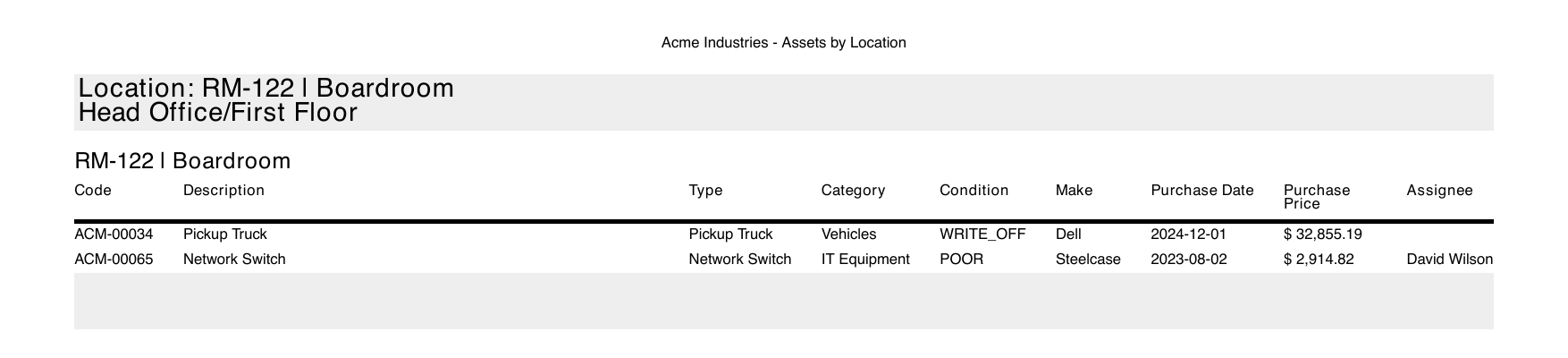
- In a PDF report — Add the columns to a report. With a signature line, this gives you a signed stocktake record.
Verify One Asset Without a Session
To confirm a single asset without starting a session, open it and choose Mark as verified from the actions menu. This records that you saw the asset in the location where it is recorded to be.
See What Was Not Counted
When you have finished all your rooms, use the Asset List to find anything that was not scanned anywhere:
- Sort by Last Verified, oldest first. Assets that have never been verified appear at the top.
- Filter Last Verified to Not in last 30 days (or another period) to show everything not seen recently, including assets that have never been verified.
- Filter Last Verified to Blank only to show only the assets that have never been verified.
On the web, Location Activity under Reports shows each location with its number of assets, the most recent and oldest verified dates, and the percentage verified within a number of days that you choose. Click a location to see the locations inside it. Location Activity is available to Admins and Editors.
Good to Know
- One session at a time. A session only counts the assets in the location you choose. Stop it before you start the next one.
- Disposed assets are not expected. They are left off the list.
- Sessions stay on the device. The scan list, the summary, and the missing items are stored on the phone or browser you used, and you can review them later on the History tab. The Last Verified dates are saved to the assets and sync as normal.
- Several people can count at once. Each person counts a different room on their own device. For a single room, use one device, because each device keeps its own list.
- Counting without a connection. The mobile app records scans offline and syncs the Last Verified dates when you reconnect. An asset that is not stored on your device shows as Not Found until you are back online.
Related
- Barcode Scanning — Camera and hardware scanners
- Locations — Setting up rooms and sites
- Roles & Permissions — Who can do what