
Barcode Scanning
Barcode Scanning
batapp supports barcode scanning to quickly find assets and populate fields. Scanning works via the mobile app's camera or a connected hardware scanner.
Camera Scanning
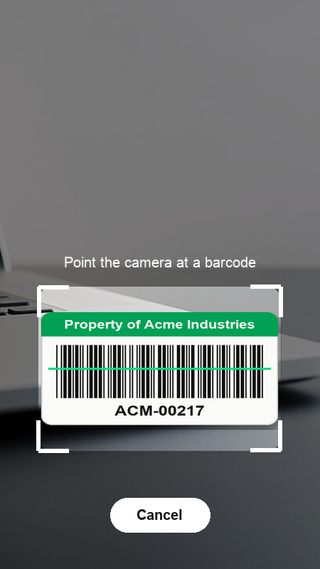
On the mobile app, use the camera scanner to scan barcodes and QR codes:
- Tap the scan button (available on the asset list and in barcode input fields)
- Point your camera at the barcode
- batapp reads the code and searches for a matching asset
All common barcode formats are supported, including QR codes, Code 128, EAN, and UPC.
What Happens After a Scan
- Asset found — The asset detail view opens. From here you can change status, edit fields, or perform other actions.
- No match — You can use the scanned value to create a new asset or populate the serial number field.
Hardware Scanner
On devices with a connected hardware barcode scanner (e.g. a Bluetooth scanner paired to a phone or tablet), batapp detects scanned input automatically in barcode input fields. No additional configuration is needed — hardware scanners work like keyboard input.
Scanner Role
The Scanner role is designed for staff who only need to scan assets and change their status. Scanner-role users:
- Can view assets (web and mobile)
- Can scan barcodes on mobile
- Can change asset status via scan (e.g. check in/out)
- Cannot edit asset details beyond status changes
This is useful for warehouse or front-desk staff who handle checkouts without needing full access to the system.
See Roles & Permissions for the full permission matrix.
Tips
- Serial numbers — When adding a new asset, you can scan its serial number barcode to populate the serial number field automatically.
- Asset codes — If your assets have barcode labels with the asset code, scanning them will locate the asset instantly.